
Rent Payment Schedule
Track your rent payments using this simple template for ExcelA Rent Payment Schedule is an excellent way of keeping track of the amount of rent owed throughout the tenancy. Keeping detailed records of what has been paid is not only crucial for making sure tenants have paid on time, it is also helpful to be able to reference any payments quickly should any payments be disputed at any point. With the facility to display both total rents due and any outstanding balance, this spreadsheet makes it easy for landlords to see their expected income, and plan and budget for any work that may need doing accordingly.
As well as landlords and letting agents, tenants may find the rent payment schedule spreadsheet a useful tool, enabling them to keep track of what they have paid, and see the cost over the entire rental term, enabling effective budgeting. This is especially useful for those moving out into a rental property while their own home is under renovation, as the total cost of the rental will need to be factored into the renovation costs.
There are two versions of this spreadsheet, one is available free, and the other is a paid version. While both worksheets offer the main functionality, the paid-for version provides more options for customization, making it ideal for landlords and letting agents.
Check out our Printable Rent Receipt template, which can be an excellent addition to complement this rent payment schedule.
Rent Payment Schedule
for Excel & Google Sheets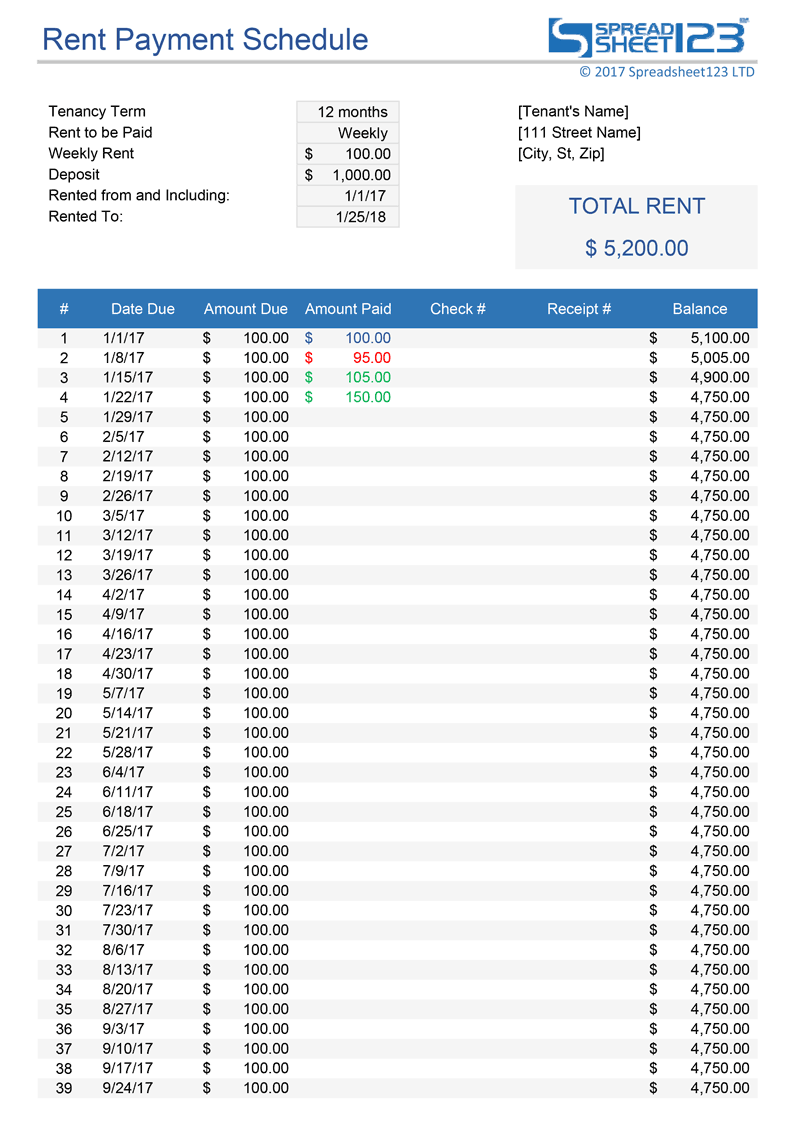
Categories
BudgetsLicense
Specifications
Using the Rent Payment Schedule
The rent payment schedule is designed to be as user friendly as possible. At the top of the page are a number of options relating to the tenancy, which will be used to populate the table below.
The spreadsheet is designed to be printed on A4 paper, making it ideal for both keeping a record, and for providing tenants with statements.
Setting the tenancy options
Tenancy term - use the box in column D to enter the tenancy term in months (e.g. 12 months for a year long tenancy). The free version of the spreadsheet has a 12 month limit, whereas there are no time constraints on the paid version.
Rent to be paid - use the drop-down list in this section to fill out how frequently the rent is paid. There are several options here, from the weekly or bi-weekly, through to annually.
Rent - the exact wording of this will change to reflect what you have entered in the "Rent to be Paid" drop down, for example, if the rent is paid monthly, it will read "Monthly Rent". Use this box to enter the amount of rent due for each payment.
Deposit - enter the deposit paid for the property in this box. This information is for your records, and is not transferred elsewhere on the spreadsheet.
Rented from and including - enter the first date of the tenancy in this box. This, along with the information in the "Rent to be Paid" dropdown will be used to populate the dates due in the table below.
Rented to - enter the last day of the tenancy in this box. As the start date and payment frequency are used to calculate the due dates, much like the deposit, this information is for your records, and not used elsewhere on the spreadsheet.
Property information
To the right of the tenancy, options are a space for entering information about the property. This includes the name of the tenant who will be renting it, and the address of the property itself. Below this, the total amount of rent due (based on the tenancy options) will be displayed.
Entering payments
Each time rent has been paid, enter it into the amount paid column (D). If the correct amount has been paid, the text will appear blue. If the amount equates to an overpayment, the text will be green, while and underpayment will be red. The check number and receipt number columns are for you to enter information for your records. Should a payment later be disputed, this will make it easy to find evidence of the payment.
The balance will show the total amount of rent outstanding for the entire rental period. This can be useful if incorrect payments have been made at some stage, or for budgeting for the future.
Rent Payment Schedule Pro
Professional 1.0.0
Specifications
- No Subscription - Pay once, use it for as long you need
- Free updates for life
- A place to add your company address and logo
- Technical Support (for 60 days)
License
Specifications
Requirements
Support
Rent Payment Schedule Pro
The paid version of this spreadsheet works in much the same way as the free version, but a few additional features.
Changing the company information
Immediately obvious is the difference in the space at the top of the page, where you can now enter your company name and logo, as well as the name and address of the landlord. The spreadsheet is designed in such a way that the Spreadsheets123 Trade Marks are outside of the print area, so while visible on screen, will not be shown on the printed rent payment schedule, giving it a more professional look and feel, which is useful for landlords and letting agents wishing to supply a copy to their tenants.
The text (company name, landlord address, tenant name, etc.) can simply be replaced by typing over the template text. The easiest way of replacing the logo is to right-click on the existing logo and select "Change picture" from the menu. By changing the logo this way, it will automatically be displayed in the correct size, on the right place of the page.
Setting the tenancy options
Tenancy term - unlike the free version, there is no 12-month limit, so the tenancy term can be set to cover longer periods if required.
Rent increase in - if the rent is due to change partway through the tenancy, for example after a period of 6 months, or at the start of a new year, enter in the number of payment periods the increase will begin in, in this box.
Increase amount - enter the amount that the rent will increase by (not the amount it will increase to) into this box.
Entering payments
The payments section is used in the same way as in the free version of the spreadsheet. The only difference you will notice is if you have set a rent increase to occur after a period of time, the new amount due will be displayed for due dates after this time and the check numbers in column E are offered to your automatically after entering the first check number.