
Simple Invoice Template
A basic invoice template for Excel for simplifying your invoicing tasks.If I were to look for invoicing solution for my business, my first choice would be a simple invoice template for Microsoft® Excel®. It should be easy to customize and user friendly, so that I would not have to spend time creating one from scratch. There are a lot of small business owners out there, just like me, who are looking for a similar solution. Keeping the needs of small to medium-sized businesses in need, I have created this simple invoice template, which you can download completely free. You may easily personalize this invoice with your personal or company information in a matter of minutes by changing a just few settings and use it for invoicing your customers. In fact, we promise you that it would take less time to create your first invoice using our simple invoice template than making a cup of coffee.
Based on this simple invoice, I created many other invoices and different corresponding templates over the years. You may find them in the gallery of invoice templates. Most of these invoice templates are free and apart from Microsoft® Excel® also available for the software programs, such as OpenOffice Calc and Google Docs. Some of these invoice templates are also available in Microsoft® Word®.
Simple Invoice Template
for Excel, Google Sheets & OpenOffice.org Calc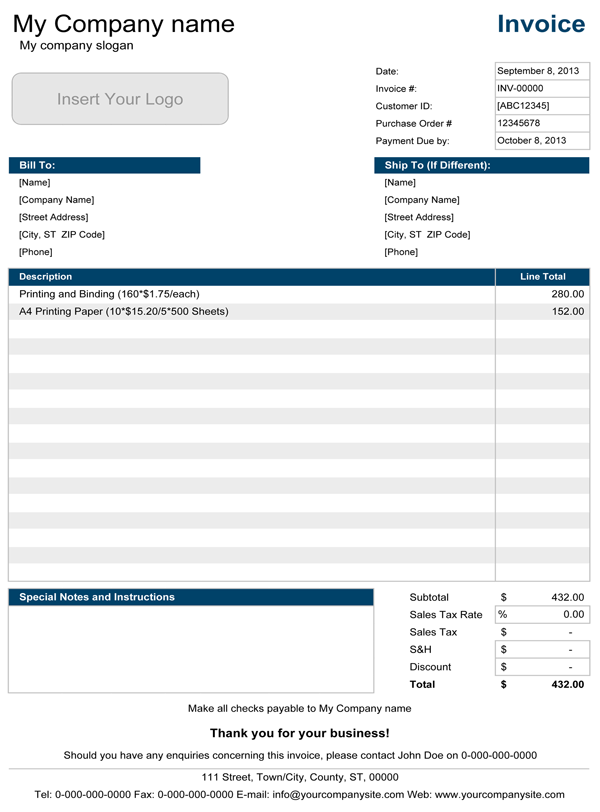
Categories
Invoices BusinessLicense
Specifications
Description
This simple invoice template is ideal for start-up businesses and individuals, as it provides them with the opportunity to perform basic invoicing tasks easily, most efficiently and completely free.
The spreadsheet includes four templates, both in portrait and landscape formats, two of which are designed in the ink-friendly form. You can also select the color out of the four pre-set colors available for you in the drop-down list on the Settings tab of the template.
Most settings should be performed on the Settings tab, which is immediately reflected on all of the invoice templates. You can also insert your logo manually on every invoice template. Changing the currency symbol is very simple. You can do this by selecting a currency symbol from the drop-down list. If your currency is not available, please refer to our support page to learn how you can add a currency symbol to the list.
Printing and Sending your Invoices.
When you are ready to print your invoices, generally we recommend using the PDF printers that usually come in the form of software, such as Adobe® Acrobat, that settles on your computer as a virtual printer. You can find it in the Devices and Printers panel of your computer. Please note that this has changed in Microsoft® Excel® 2013 due to the fact that Excel 2013 has an integrated PDF converter, which lets you export your invoices in PDF without the need of additional software. Converting individual invoices to PDF can also save you money on paper and ink and, most important, save you time when sending your invoices.