Purchase Order with Price List
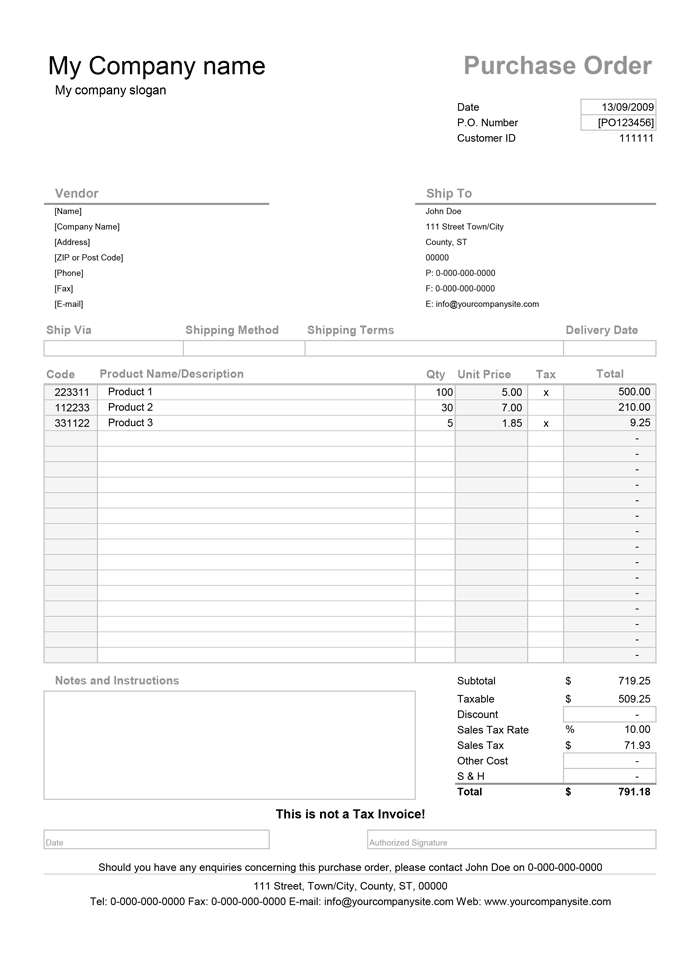
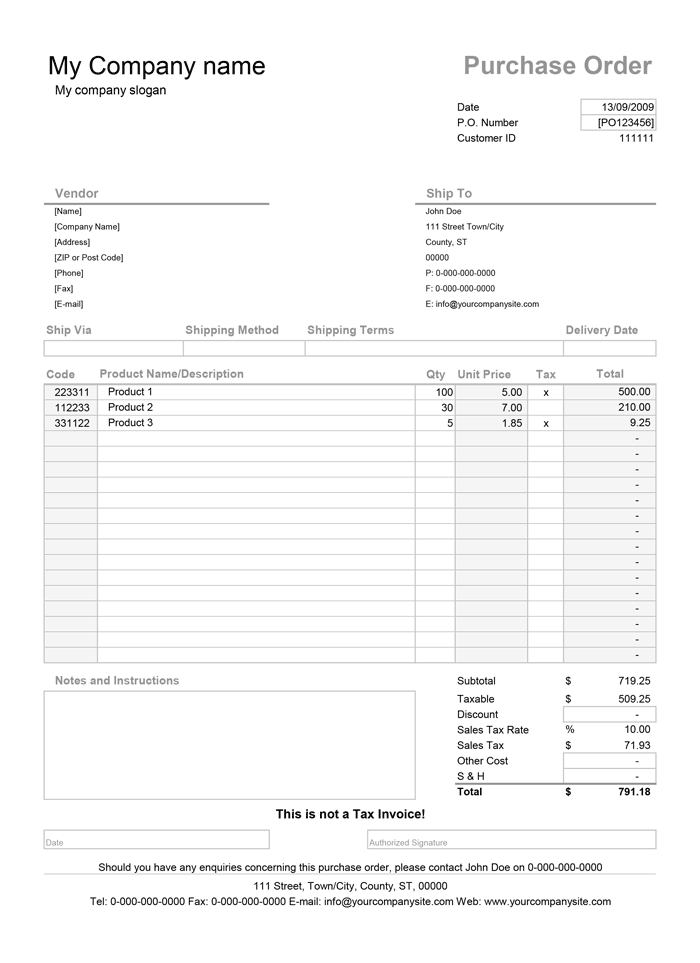
Download a free PO template for Microsoft Excel®The Purchase Order with Price List lets you conveniently select items from an in-cell drop-down list linked to a price list where product information such as item number, description, and unit prices are stored. When you select your products from a drop-down, item #'s and unit prices are updated automatically. This template makes the process of creating purchase orders more comfortable and less time consuming, especially when you order from the same supplier regularly.
Although this template is more feature-packed than the original Purchase Order Template, we understand that it may not be everyone's cup of tea, so you may want to use a simpler version without the price list functionality.
Purchase Order with Price List
for Excel & OpenOffice.org Calc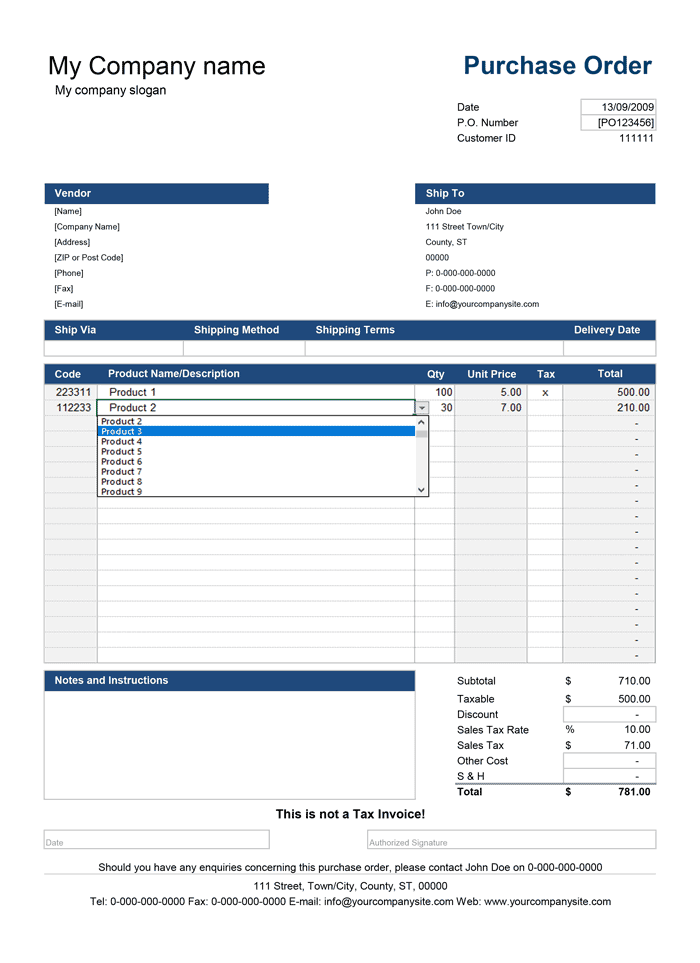
Categories
Invoices BusinessScreenshots
1 2License
Specifications
Description
The price list featured in this version of the purchase order template is similar to the one used in some of our invoice templates. It is a simple list (see the image below) on the separate worksheet containing Item #, Unit Price, and Item Description used to populate the drop-down box on the order form. The lookup functions used in the Code and Unit Price column will update automatically based on the selected product in the Item Description column. For the lookup functions to work correctly, the item description must be unique. The order form contains an optional tax column used to indicate taxable items by entering the "x" in the corresponding row.
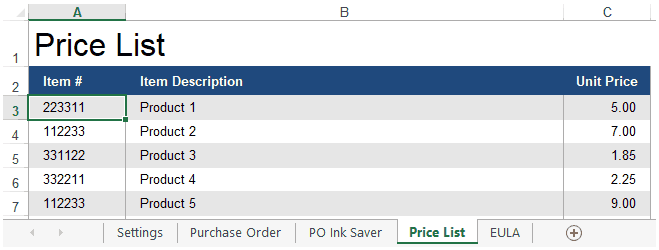
The purpose of the purchase order with the price list is to save time and eliminate the need to manually enter the product description, unit price, and item# each time you create a new purchase order.
How to Use the PO with Price List
The PO template includes a setting worksheet where you enter your company-related information to set up the purchase order form. Some of the fields are optional and can be left blank. You may also want to tweak the information related to your country or state, such as currency symbol and tax rate.
If you prefer to use the logo of your company instead of a name and slogan, you will need to insert the image directly on the PO form by navigating to Insert > Picture in the Excel's ribbon.
The following set of customizations may depend on how you are planning to use the purchase order form, so you may choose how you'd want to proceed forward.
If you intend to use the Purchase Order with different vendors, you may want to consider creating a copy for each vendor separately.
Create a master copy of the file with added Vendor information on the PO worksheet, enter items and prices for that vendor in the price list then save it with an easily identifiable filename like po_vendor_masterfile.xlsx or similar. Keep the price list and vendor information up to date in each of your master copy.
To create a new purchase order, make a copy of the master file then change the filename to something like 123456_vendor.xlsx or any other name structure that'd make sense to you.
As a side note, having the PO number in the file name structure makes it easier to identify your orders when needed.
Whenever you are ready to send a purchase order to a vendor, you can either print or save the worksheet to a PDF file using the same file naming convention as described above then email it to your supplier. Alternatively, you can print a paper copy then mail or fax it.
You can keep track of your PO numbers using our simple Purchase Order Tracker spreadsheet, which will help you to know what the next PO number should be.
PO with Vendor List & Multiple Price Lists
for Excel & OpenOffice.org Calc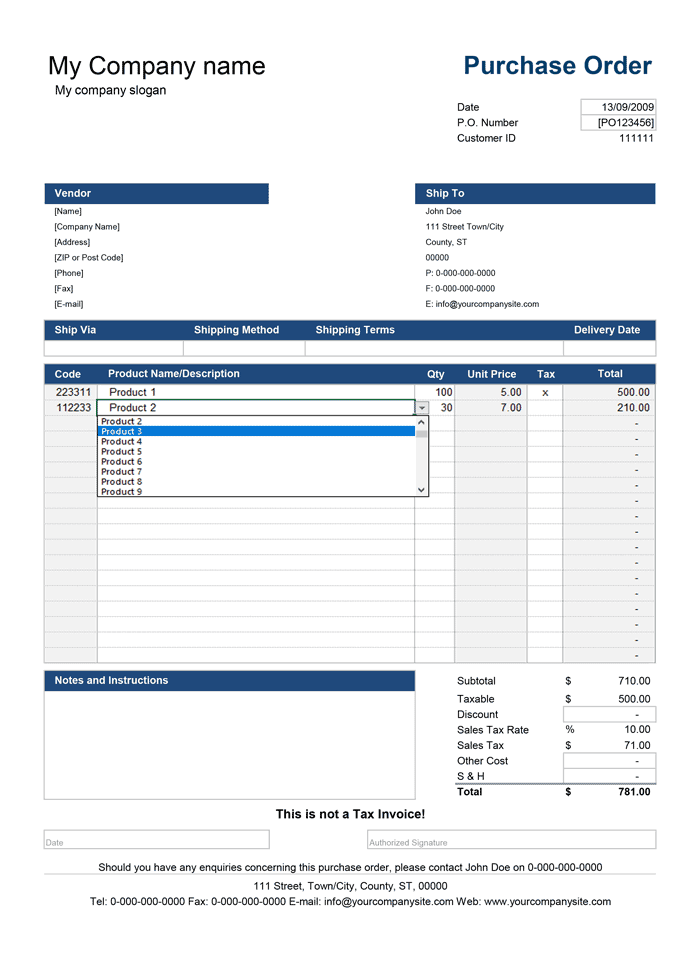
Categories
Invoices BusinessScreenshots
1 2License
Specifications
Description
The purchase order worksheet in this version of the template is linked to a Vendor list, a list of Ship To locations, and multiple customizable price lists. We have combined the functionality of all our purchase order templates into a single, convenient spreadsheet. So if you send numerous orders per day to various vendors, and need them shipped to different locations, this version of the PO will be of great help.
You can pick a vendor from the drop-down list. All fields in the Vendor section on the PO form will include the details of the selected vendor. Additionally, the drop-down boxes in the order form section will include the item description from the list assigned to that specific vendor. The information in the Ship To section will change when you select the ship-to name in another drop-down (as shown on the image below).
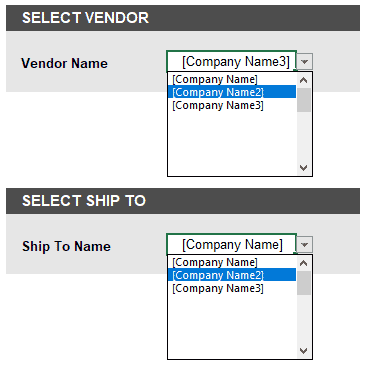
Vendor List: Create a list of your vendors on this worksheet. You can link a separate price list to each vendor via the drop-down.
Right out of the box, the spreadsheet includes six individual price lists, but you can easily add more by creating a copy of the existing price list. Press CTRL and drag the worksheet tab that you'd like copied then rename the worksheet like Price List [Vendor].
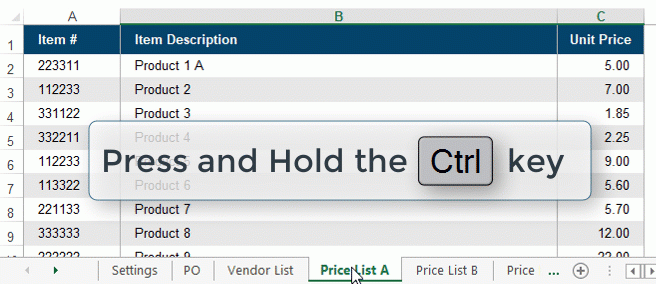
To include a new price list to the drop-down, you'd need to enter the name into a list of Price LIst on the Settings worksheet.
Ship To List: Enter the information about all the shipping locations. You can enter the destination for every brunch where you'd want your products shipped. As a side note, you may also want to include your main HQ location on this list.
Send PO to a Supplier: When you need to send a PO to a vendor, first print the worksheet or save it to a PDF file then email the PDF to your supplier.