Delivery Note Template
Download a free Delivery Note Template for Microsoft® Excel® and Google Sheets | Updated 3/8/2020The Delivery Note is an essential document for a business where logistics plays a considerable role in revenue generation. This document accompanies a shipment of goods, providing an overview of the initial order and the description of products not enclosed in delivery to ensure the accuracy. Additionally, the presence of the delivery note helps to identify and report any missing items or items damaged in transit, thus eliminate any disputes between you and your customers.
Spreadsheet123's free Delivery Note templates on this page were designed to complement our sales invoices and the purchase order templates. They offer consistency and help you to retain your company branding across all documents.
If you have to create multiple delivery notes daily and are looking for automated solutions for your business, you may find the Delivery Note Manager below on this page particularly useful.
Delivery Note Template
for Excel, Google Sheets & OpenOffice.org Calc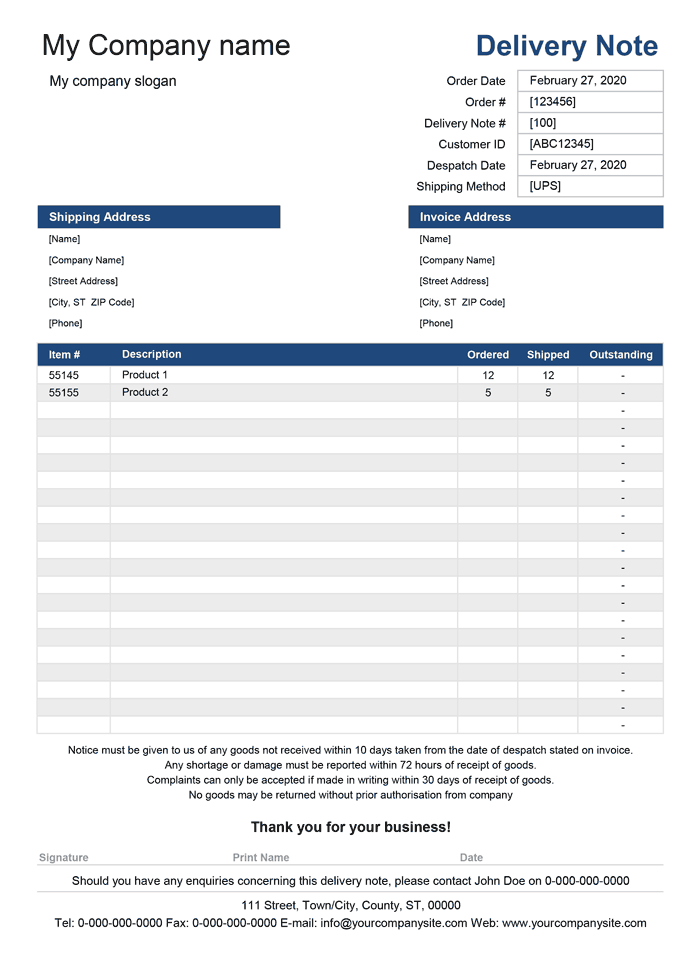
Categories
Invoices BusinessScreenshots
1 2License
Specifications
Description
This simple delivery note is very similar to our packing slip template, with a few minor differences. The delivery note lets you specify the number of products ordered by the buyer and the actual number of products shipped, displaying any difference between the two as outstanding. Although the use of this document isn't required by law, nonetheless, using a delivery note form in your business can simplify your business processes and significantly improve communication between you and the customer.
Continue reading below to learn how you can customize this template to use in your business.
Delivery Note with Product List
for Excel, Google Sheets & OpenOffice.org Calc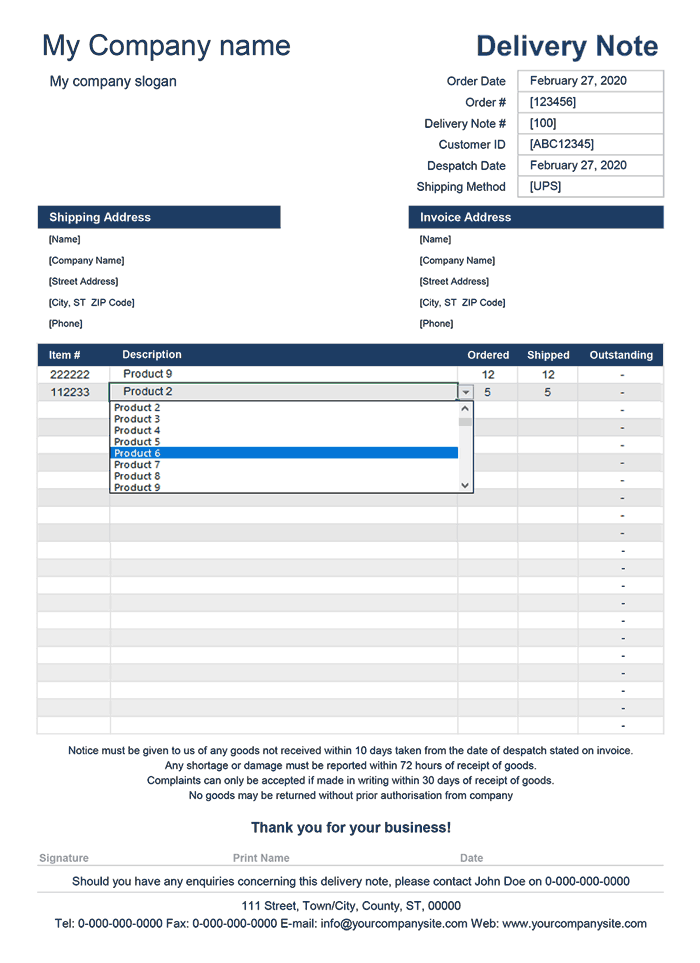
Categories
Invoices BusinessScreenshots
1 2License
Specifications
Description
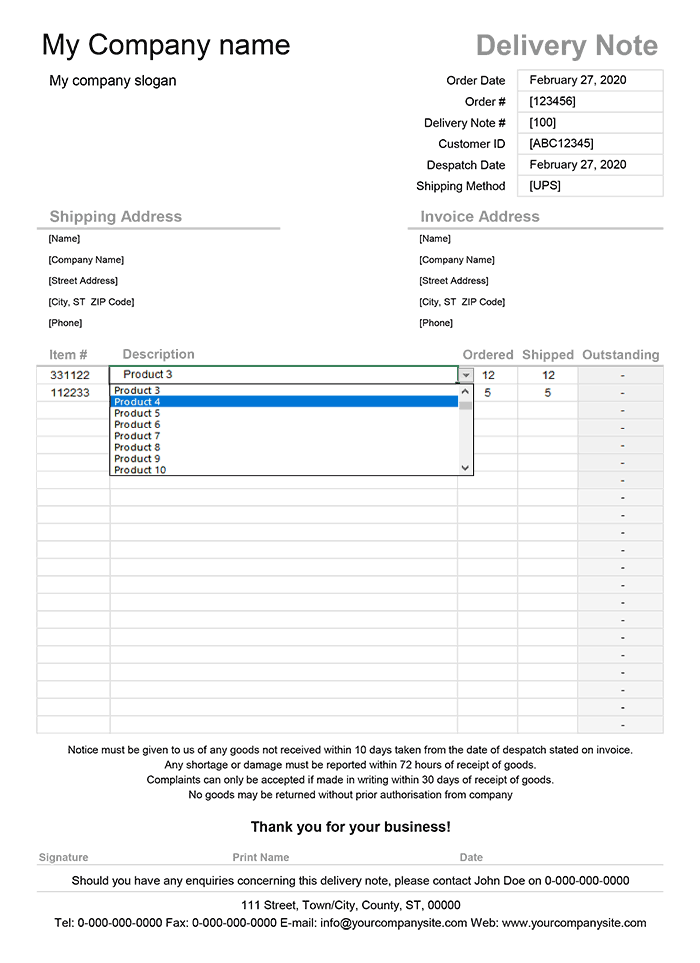
The delivery note with the product list is an enhanced version of our simple delivery note found above on this page. This version allows you to select products from the drop-down list linked to the product list (on the separate worksheets) as opposed to having to type products manually. The lookup function used in the column Item # will update the item number automatically based on your selection in the Description column.
The purpose of the Delivery Note with Product List is to help to save time and eliminate the need for having to fill out delivery notes manually, especially if you have to create multiple delivery notes daily.
How to use Delivery Note Template
Right out of the box the delivery note template comes equipped with the settings worksheet where you can enter your company information, such as your company name, address, phone, etc. that will appear on the delivery note form. Some information is optional, which means that you can either leave the cell blank or disable it entirely. If you want to insert your company logo on the delivery note, click on the Insert Tab > Pictures in Excel 2010 or newer or Insert > Picture > From File in the older version of Microsoft Excel.
The following set of customization will depend on how you intend to use the delivery note form, so you may choose how to proceed forward.
If you intend to use the Delivery Note with different customers, you may want to consider the option of creating a copy for each customer individually so that you won't have to fill out the customer information every time you create a new delivery note.
Create a master copy with the customer id, customer information in the shipping address section, and invoice address section on the delivery note form then save the file with the easily identifiable name like dn_customer_masterfile.xlsx or similar. Keep the product list and customer information up to date in each master copy.
To create a new delivery note, make a copy of the master file, change the file name to something like 123456_customer.xlsx, where numbers can represent the delivery note number followed by the customer name or any other name that'd make sense to you. Having the delivery note number in the file name structure makes it easier to identify your delivery notes when needed.
Sending Delivery Notes
Save the complete delivery note as PDF file (this may require a separate software add-on or PDF creator), and then send it via email before shipping any goods to a customer. If you choose to send a paper copy instead, you have the option of using an ink-saver version of the delivery to save some ink.
Always create three copies of the delivery note to keep one for your records and send the other two to your customer alongside the shipment. Your courier can obtain a signature upon delivery then return the signed copy to you, which is a confirmation of delivery and condition of products delivered to avoid any disputes.
Delivery Note Manager Pro
Professional 1.1.4
Specifications
- No Subscription - Pay once, use it for as long you need
- Free updates for life (conditions apply)
- Ability to add your company address and logo
- Ability to add custom delivery note templates
- Ability to customize VBA code
- Technical Support (for 60 days)
License
Specifications
Requirements
Support
Bonus Downloads
Delivery Note Manager with Customer List
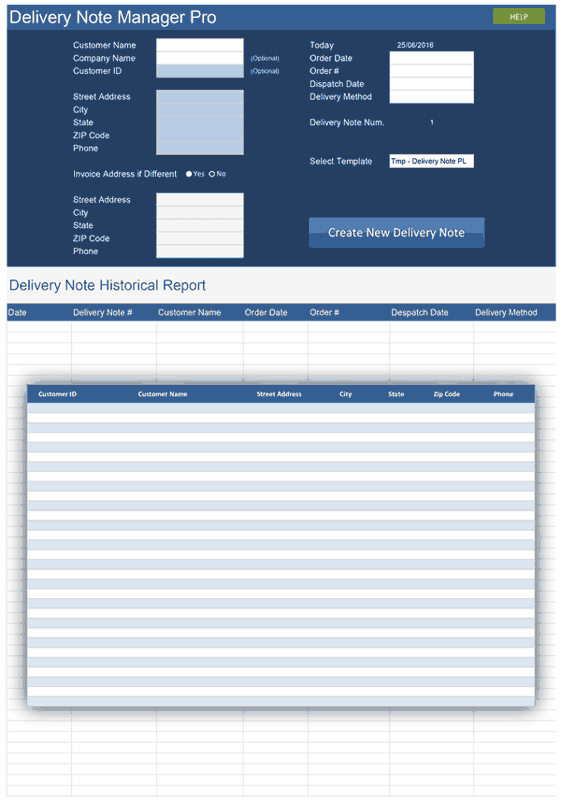
This version of the Delivery Note Manager lets you select your customer from the drop-down list instead of having to enter the customer details manually. The information in the drop-down is linked to the Customer List (on the separate worksheet), which can be updated with the customer details such as customer name and contact details. Creating and maintaining your customer list will help you save time when creating delivery notes, especially when creating new delivery notes for existing customers.
Initial Setup
You can begin creating delivery notes in minutes once you download this software, but before you do, you will need to set it up. The software contains settings worksheet (see screenshot) that makes it possible to set up all three delivery note templates included with the software at once. Information contained in some cells is optional, you can either leave the cells blank or disable them entirely if you do not want it displayed on your delivery notes. The setting worksheet lets you enter your business information that will appear on your delivery notes. You can also change the title of the directory for storing the delivery notes you create to the name that'd make sense to you. The software would automatically create this directory upon the creation of your first delivery note.
Besides general settings, you can also change a few things on each of the delivery note templates. You can insert your company logo and change the text displayed at the bottom of the delivery note form.
Creating a Delivery Note
Manager - This is the main worksheet that allows you to create new and manage your existing delivery notes from a single place (see screenshot). To create a new delivery note, you'll need to enter your customer details or select your customer name from the drop-down (Delivery Note with Customer List). Enter the order details, such as order date, order number, etc. then select the delivery note template from the drop-down and click the "Create new Delivery Note" button. Optionally you may also enter the address for the invoice if different from the main shipping address, which will show up on the delivery note when used.
Customer List - You can create and maintain the list of customers (see screenshot) that makes it convenient for you to import details, such as address and contact information to the delivery note when you select the customer name in the drop-down on the manager worksheet. This feature helps to eliminate the need for having to manually type the customer information every time you create the delivery notes for existing customers.
Products List - This feature lets you create a list of products you ship to your customers (see screenshot) then select products by description from the drop-down on the Delivery Note PL template or by item # on the Delivery Note PL IT template. The products list is copied along when you create new delivery notes using one of two of these templates.
The delivery notes you create will get stored in the directory specified in settings and are macro-free, standalone workbooks with the unique title. The title includes your customer name, followed by the delivery note number (Name-1, Name-2, ..., etc.). Additionally, every time you generate a new delivery note, the software creates a record in the Delivery Note Historical Report with the delivery note number as a hyperlink to the relevant delivery note. This helps in managing and accessing all the delivery notes directly from the Manager.
When the delivery note gets created, it will open up instantly, so that you can start entering all delivery-related information, such as "Item #", "product description", quantity "ordered" and "shipped". The difference between the number of goods ordered and shipped is displayed as outstanding.
Powerful Features
Customize Templates
The workbook contains 3 predefined delivery note templates based on the basic delivery note and delivery note with product list templates. You can create your own templates by making copies of the existing template to pre-populate your delivery notes with as much information as you see fit. Once you create your template, you can include it in the drop-down list on the manager worksheet via Data > Data Validation.
Spreadsheet123's Delivery Note Manager is designed with flexibility in mind, leaving a lot of room to users for further customizations. Provided that you have a good grasp of Excel, you have almost limitless options for what you can do with templates.
VBA Code
We have made access to the VBA code easy for all power users, who may want to perform further customizations or add their own macros. Although the VBA code is copyrighted and password-protected, after purchasing, you will be provided with the access password so that you can turn into a perfect tool for your business.
Affordable
No Subscription
No subscription fee, you pay only once for this delivery note system and can use it for as long as you want.
Free Updates
When you purchase the software, you'll become eligible for future updates and new releases free of charge. You can return to the download page to get the latest files or get the latest files emailed to you after providing your receipt.