Work Order Tracking Template
Download our Work Order Tracker spreadsheet for Microsoft Excel, by Alex BejanishviliTracking your work orders does not have to be too complicated. With this simple work order tracking template, you can track the status of your work orders with ease regardless of whether you choose to use it internally within your company or to track orders received from the external customers. Additionally, you may want to use our work order tracker as a simple CRM (Customer Relationship Management) to update the status and track the progress of all orders.
The work order tracker provides a way to list all your work orders in a single Excel workbook. It even lets you show orders submitted by an individual customer by using Excel's built-in filtering feature.
Continue reading below on this page to learn about different ways of using this template.
Work Order Tracking Template
for Excel & Google Sheets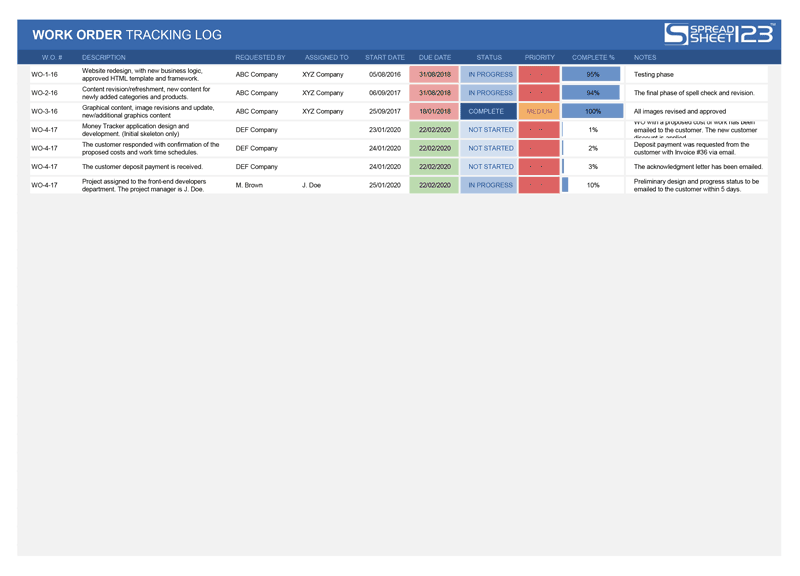
Categories
Invoices BusinessLicense
Specifications
Description
Our simple work order tracker allows you to keep track of all work orders conveniently in a single workbook. The conditional formatting used extensively in this workbook to help visually interpret the status and progress of each order. The legend area, located below in this workbook contains information about what each color represents and will help you to navigate with ease.

Additionally, with the built-in Excel's drop-down list, you can easily change the status of your orders and set a priority for each work order as needed.
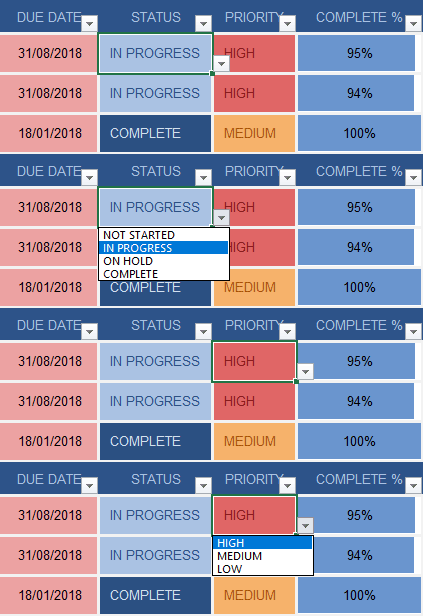
The color of the cells in the "Due Date" column changes automatically from white to green, yellow, and red as work completion deadline approaches. You can adjust the percentage of completed work as you check the status of work. The cells in the "Complete %" column display progress in the form of a horizontal bar. The work order log contains spaces for entering a brief description of the work and any notes. We recommend including the name of the person in the notes section or insert a separate column for this so that you know who made changes at any given time.
How to Use the Work Order Tracking Template
The work order tracker is ready to use right out of the box, but you can customize it as you see fit. One feature of this template worth mentioning is that you can change the color scheme of the entire worksheet by selecting desired themes or colors under the Page Layout > Themes in the ribbon. Additionally, this template uses Excel's advanced filter feature to help you navigate through your orders when using this work order tracking template as CRM (read more below). You can turn this feature on or off by navigation to the Data > Sort & Filter in the ribbon.
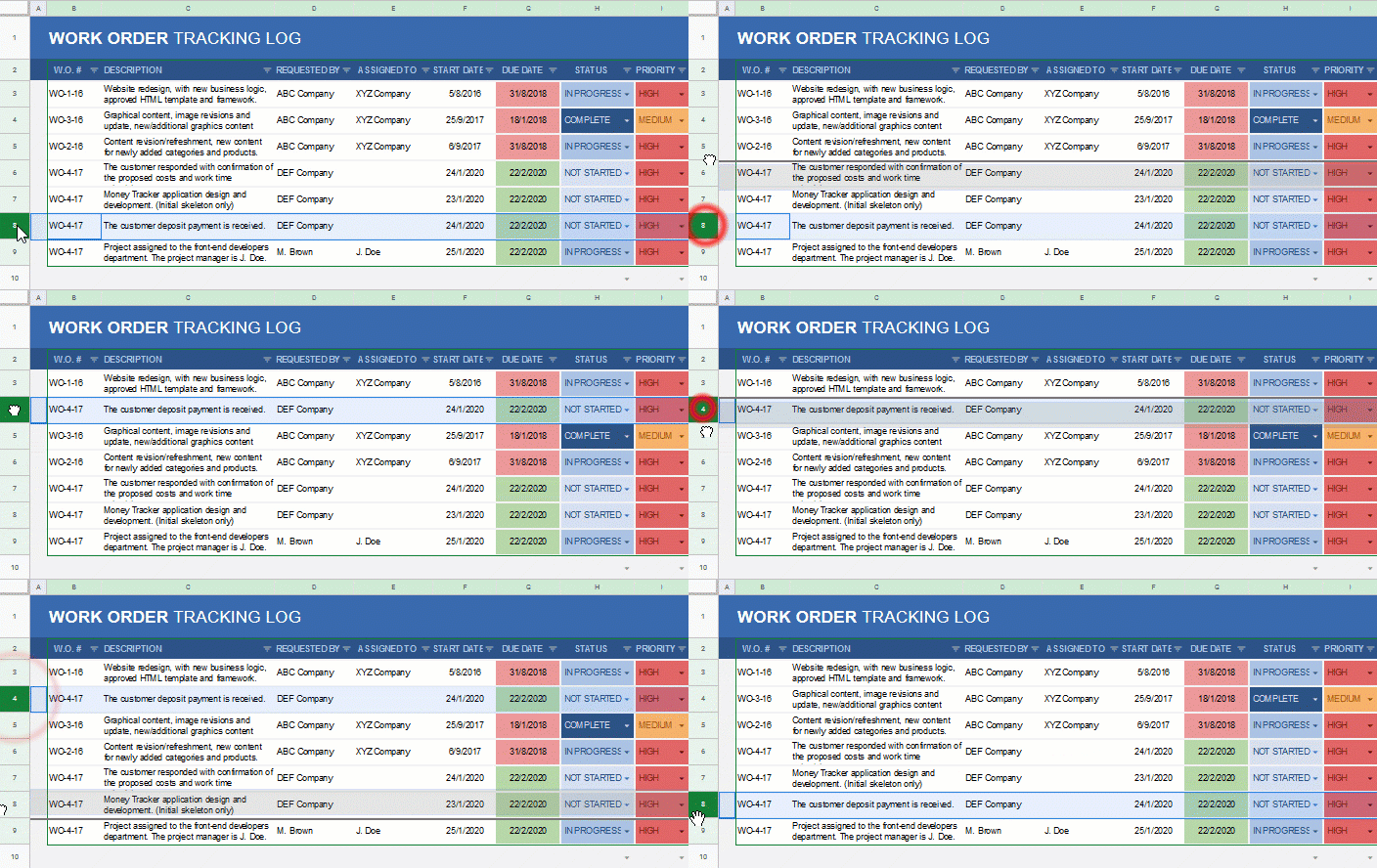
It is easy to move rows around (especially in the Google Sheet version) or add new ones when necessary. You can also add more columns to include any additional details about your work orders without making it any more difficult to move between the lines.
Real-Time Collaboration
You can edit the Work Order Tracking Template in real-time using the co-authoring feature of Excel, provided that you have an Office 365 subscription. To learn more about this, see this article.
When using Excel, to share this file with multiple users in your team, we recommend using Microsoft OneDrive, giving everyone in your organization access to the file as well as access through Excel's web and mobile apps. Using DropBox as an alternative to Microsoft's OneDrive can also be considered as an option when sharing amongst your co-workers, but won't let you use this file simultaneously on multiple devices.
Google Sheets provides by far the most comfortable place for real-time collaboration when using this Work Order Tracking template, especially if you don't have an Office 365 subscription.
Using the Work Order Tracker Internally
The work order tracker can be used internally (within your organization) to track the status of work requested from different departments. For example, in the IT industry, one department may require the completion of some tasks by another department and can track the progress of work using this template. The template can be used to record the status of a single work order as well as multiple orders if need be. Besides, the department from whom the work is requested can use this template to submit the work status reports.
Track External Customers Work Order Status
Using the work order tracking template for tracking orders received from the customers outside your organization is performed in much the same way as when you track orders internally. Some differences may arise when your orders are more complex and require multilevel tracking, such as orders in the construction industry, for example. For complex orders, we recommend using a separate work order tracker, which can help with tracking individual tasks and lets you send work progress reports to your customer.
Using Work Order Tracker as CRM
Using the work order tracking template as a simple CRM ensures extra comfort for your team. You can keep a record and track multiple orders at a time. Users can record any communications and request made by a customer in addition to the initial work order that could all be registered under the same reference (W. O. #). Searching for any work order is very easy when using Excel's advanced filter option that we included in the template. Besides, your team can gain access to the main file via Excel's mobile apps to make changes when outside the office.
Sending a Work Order Status to your Customers
When you need to send a work order status report to a customer, we generally do not recommend sending the Excel file as it may contain information that you do not want to share with your customers. Instead, you can easily convert and send it as a PDF file. To save your file to a PDF format, you can choose Microsoft Print to PDF in the Print options in Excel 2010 and newer. Alternatively, you can also save you file as PDF via Save As > [Directory] then change the "Save as type" to PDF (*.pdf) instead of Excel Workbook.
If you are using this template for tracking multiple work orders for different customers, you can use Excel's advanced filter to filter out data that you do not need when printing.